User Guide
Bookopedia is a desktop application specifically built for parcel delivery riders, optimized for use via a Command Line Interface (CLI) while still having the benefits of a Graphical User Interface (GUI). This enables delivery riders to be able to quickly plan their deliveries by typing in commands and still be able to view them in an organized manner.
- Quick start
-
Features
- Viewing help :
help - Add delivery:
add - Add parcel to a delivery:
add_pc - Mark delivery :
mark - Mark parcel:
mark_pc - Viewing a delivery :
view - Listing all deliveries :
list - Sorting all deliveries :
sort - Editing a delivery :
edit - Finding delivery by name:
find - Deleting a delivery :
delete - Clearing all entries :
clear - Exiting the program :
exit - Saving the data
- Editing the data file
- Viewing help :
- FAQ
- Command summary
Quick start
-
Ensure you have Java
11or above installed in your Computer. -
Download the latest
bookopedia.jarfrom here. -
Copy the file to the folder you want to use as the home folder for your Bookopedia.
-
Open a command terminal,
cdinto the folder you put the jar file in, and use thejava -jar bookopedia.jarcommand to run the application.
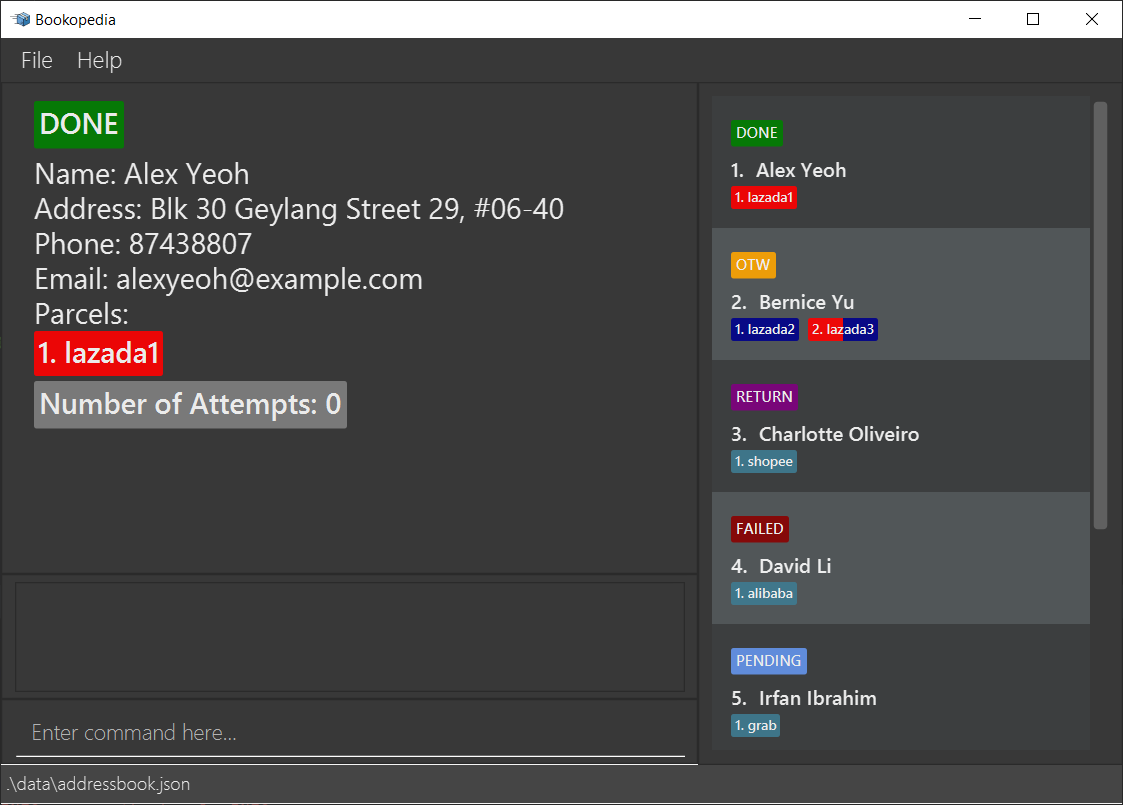
A GUI similar to the below should appear in a few seconds. Note how the app contains some sample data.
-
Start using Bookopedia!
-
Refer to the Features below for details of each command.
Features
 Notes about the command format:
-
Words in
UPPER_CASEare the parameters to be supplied by the user.
e.g. inadd n/NAME,NAMEis a parameter which can be used asadd n/John Doe. -
Items in square brackets are optional.
e.gn/NAME [e/EMAIL]can be used asn/John Doe e/jd@gmail.comor asn/John Doe. -
Items with
… after them can be used multiple times including zero times.
e.g.[pc/PARCEL]…can be used aspc/shopee,pc/shopee pc/lazadaetc. -
Parameters can be in any order.
e.g. if the command specifiesn/NAME a/ADDRESS,a/ADDRESS n/NAMEis also acceptable. -
If a parameter is expected only once in the command, but you specified it multiple times, only the last occurrence of the parameter will be taken.
e.g. if you specifyn/oldName n/newName, onlyn/newNamewill be taken. -
Extraneous parameters for commands that do not take in parameters (such as
help,list,exitandclear) will be ignored.
e.g. if the command specifieshelp 123, it will be interpreted ashelp.
Viewing help : help
Shows a message explaining how to access the user guide.

Format: help
Add delivery: add
Adds a person to deliver to.
Format: add n/NAME a/ADDRESS [p/PHONE_NUMBER] [e/EMAIL] [pc/PARCEL]…
Examples:
add n/Yusof a/Yusof Ishak House, #04-420 e/yusof@gmail.com pc/lazada123 pc/lazada456add n/Linus a/Utown, #01-01 pc/shopee234
Add parcel to a delivery: add_pc
Adds a parcel to an existing delivery at the specified INDEX. The index refers to the index number shown in the displayed delivery list. The index must be a positive integer 1, 2, 3, …
Constraints:
- Deliveries with done or return status cannot add parcels.
Format: add_pc INDEX pc/PARCEL
Examples:
-
add_pc 1 pc/shopee234Adds parcel shopee234 to 1st delivery. -
add_pc 2 pc/lazada456Adds parcel lazada456 to 2nd delivery.
Mark delivery : mark
Marks a delivery with a status. Marking a delivery as failed will increase its number of delivery attempts. Deliveries with 3 delivery attempts will automatically marked as return.
Constraints:
- Deliveries with done or return status cannot have their statuses changed.
Format: mark INDEX s/STATUS
- Edits the delivery at the specified
INDEX. The index refers to the index number shown in the displayed delivery list. The index must be a positive integer 1, 2, 3, … -
STATUSmust be of the following-
pendingfor pending delivery -
otwfor in progress delivery (p.s. otw is an abbreviation of ‘on the way’, synonymously with ‘in progress’) -
failedfor failed delivery -
donefor done delivery -
returnfor return delivery (i.e used when recipient rejects delivery)
-

-
RETURNDelivery -
PENDINGDelivery -
OTWDelivery -
FAILEDDelivery -
DONEDelivery
Examples:
-
mark 1 s/otwMarks the 1st delivery as in progress. -
mark 1 s/failedMarks the 1st delivery as failed. -
mark 1 s/doneMarks the 1st delivery as done.
Mark parcel: mark_pc
Marks a parcel from a delivery with a status.
 Caution:
Once a parcel is marked with a status, you cannot unmark it, you will have to delete delivery and start again.
Caution:
Once a parcel is marked with a status, you cannot unmark it, you will have to delete delivery and start again.
Constraints:
- Deliveries with done or return status cannot have its parcels marked.
Format: mark_pc INDEX_OF_DELIVERY pc/INDEX_OF_PARCEL s/STATUS
-
INDEX_OF_DELIVERYindicates which delivery you are choosing your parcel from. -
INDEX_OF_PARCELindicates which parcel you want to mark. - Both indexes must be a positive integer 1, 2, 3, …
-
STATUSmust be of the following-
fragilefor a fragile parcel- indicated in red
-
bulkyfor a bulky parcel- indicated in blue
-

- Parcel
lazada0is not fragile and not bulky - Parcel
lazada1is fragile but not bulky - Parcel
lazada2is bulky but not fragile - Parcel
lazada3is both fragile and bulky
Examples:
-
mark_pc 1 pc/1 s/fragileMarks the 1st parcel of the 1st delivery as fragile. -
mark_pc 1 pc/2 s/bulkyMarks the 2nd parcel of the 1st delivery as bulky. -
mark_pc 2 pc/1 s/fragileMarks the 1st parcel of the 2nd delivery as fragile.
Viewing a delivery : view
View more details about a delivery.
Format: view INDEX
- View more details about a delivery at the specified
INDEX. The index refers to the index number shown in the displayed delivery list. The index must be a positive integer.
Examples:
-
view 1View more details about the 1st delivery in the list. -
view 2View more details about the 2nd delivery in the list.
Listing all deliveries : list
Shows all deliveries and their respective details.
Format: list
Sorting all deliveries : sort
Sorts all deliveries by their delivery status in ascending order.
Ordering: PENDING < OTW < DONE < FAILED < RETURN
Format: sort
Editing a delivery : edit
Edits an existing delivery.
Format: edit INDEX [n/NAME] [a/ADDRESS] [p/PHONE] [e/EMAIL] [pc/PARCEL]…
- Edits the delivery at the specified
INDEX. The index refers to the index number shown in the displayed list. The index must be a positive integer 1, 2, 3, … - At least one of the optional fields must be provided.
- Existing values will be updated to the input values.
- When editing parcels, the existing parcels of the person will be removed i.e adding of parcels is not cumulative.
- You can remove all the person’s parcels by typing
pc/without specifying any parcels after it. - You can remove the optional field of a person’s phone number by typing
p/without specifying a phone number after it. - You can remove the optional field of a person’s email address by typing
e/without specifying an email address after it.
Constraints:
- Deliveries with done or return status cannot be edited.
Examples:
-
edit 1 p/91234567 e/johndoe@example.comEdits the phone number and email address of the 1st person to be91234567andjohndoe@example.comrespectively. -
edit 1 p/ e/Edits the phone number and email address of the 1st person to be empty, effectively removing these optional fields. -
edit 2 n/Betsy Crower pc/Edits the name of the 2nd person to beBetsy Crowerand clears all existing parcels.
Finding delivery by name: find
Finds deliveries which contain any of the given keywords.
Caution:
After executing find command, a sub list will be generated and subsequent commands will only affect the current sub list showing.
To revert back to the full list, use list command
Format: find KEYWORD [MORE_KEYWORDS]
- The search is case-insensitive. e.g
hanswill matchHans - The order of the keywords does not matter. e.g.
Hans Bowill matchBo Hans - Only the name of the delivery is searched.
- Only full words will be matched e.g.
Hanwill not matchHans - Delivery matching at least one keyword will be returned (i.e.
ORsearch). e.g.Hans Bowill returnHans Gruber,Bo Yang
Examples:
-
find JohnreturnsjohnandJohn Doe -
find alex davidreturnsAlex Yeoh,David Li
Deleting a delivery : delete
Deletes the specified delivery from the delivery list.
Format: delete INDEX
- Deletes the delivery at the specified
INDEX. - The index refers to the index number shown in the displayed delivery list.
- The index must be a positive integer 1, 2, 3, …
Examples:
-
listfollowed bydelete 2deletes the 2nd delivery in the task manager.
Clearing all entries : clear
Clears all entries from the Bookopedia.
Format: clear
Exiting the program : exit
Exits Bookopedia.
Format: exit
Saving the data
Bookopedia data are saved in the hard disk automatically after any command that changes the data. There is no need to save manually.
Editing the data file
Bookopedia data are saved as a JSON file [JAR file location]/data/bookopedia.json. Advanced users are welcome to update data directly by editing that data file.
Caution:
If your changes to the data file makes its format invalid, Bookopedia will discard all data and start with an empty data file at the next run.
FAQ
Q: How do I transfer my data to another Computer?
A: Install the app in the other computer and overwrite the empty data file it creates with the file that contains the data of your previous Bookopedia home folder.
Command summary
| Action | Format, Examples |
|---|---|
| Help | help |
| Add |
add n/DELIVERY a/ADDRESS [p/PHONE_NUMBER] [e/EMAIL] [pc/PARCEL]… e.g., add n/Shopee a/Yusof Ishak House, #04-420 pc/lazada123
|
| Add Parcel |
add_pc INDEX pc/PARCEL e.g., add_pc 1 pc/alibaba420
|
| Mark |
mark INDEX s/STATUS e.g., mark 1 s/otw
|
| Mark Parcel |
mark_pc INDEX_OF_DELIVERY pc/INDEX_OF_PARCEL s/STATUS e.g., mark_pc 1 pc/1 s/fragile
|
| View |
view INDEX e.g., view 1
|
| List | list |
| Sort | sort |
| Edit |
edit INDEX [n/NAME] [p/PHONE_NUMBER] [e/EMAIL] [a/ADDRESS] [pc/PARCEL]…e.g., edit 2 n/James e/james@example.com
|
| Find |
find KEYWORD [MORE_KEYWORDS]e.g., find James Jake
|
| Delete |
delete INDEXe.g., delete 3
|
| Clear | clear |
| Exit | exit |